Appoint Lejar as your MyInvois intermediary
Written by the Lejar team3 min read
Lejar submits e-invoices to LHDN on your behalf, so you never need your own signing certificate or ERP registration. The one-time setup is appointing Iterate Ventures Sdn. Bhd., the company that operates Lejar, as your MyInvois intermediary in the MyTax portal. This guide walks all four steps with screenshots from the live portal, verified as of 20 August 2026.
What is a MyInvois intermediary?
An intermediary is a service provider you authorise in the MyInvois system to submit e-invoices for your business. LHDN validates every document exactly as if you had submitted it yourself, and you stay the taxpayer of record. The appointment is made once in the MyTax portal, you control the permissions and the representation period, and you can remove it at any time.
Lejar's intermediary entity is Iterate Ventures Sdn. Bhd. (TIN C60694359050, BRN 202601021291). You will enter these details in step 3.
Before you start
- A MyTax login that can act for your business: the owner, a director, or someone already holding a representative role.
- About five minutes in the MyInvois portal.
Step 1: log in to MyTax and open the MyInvois portal
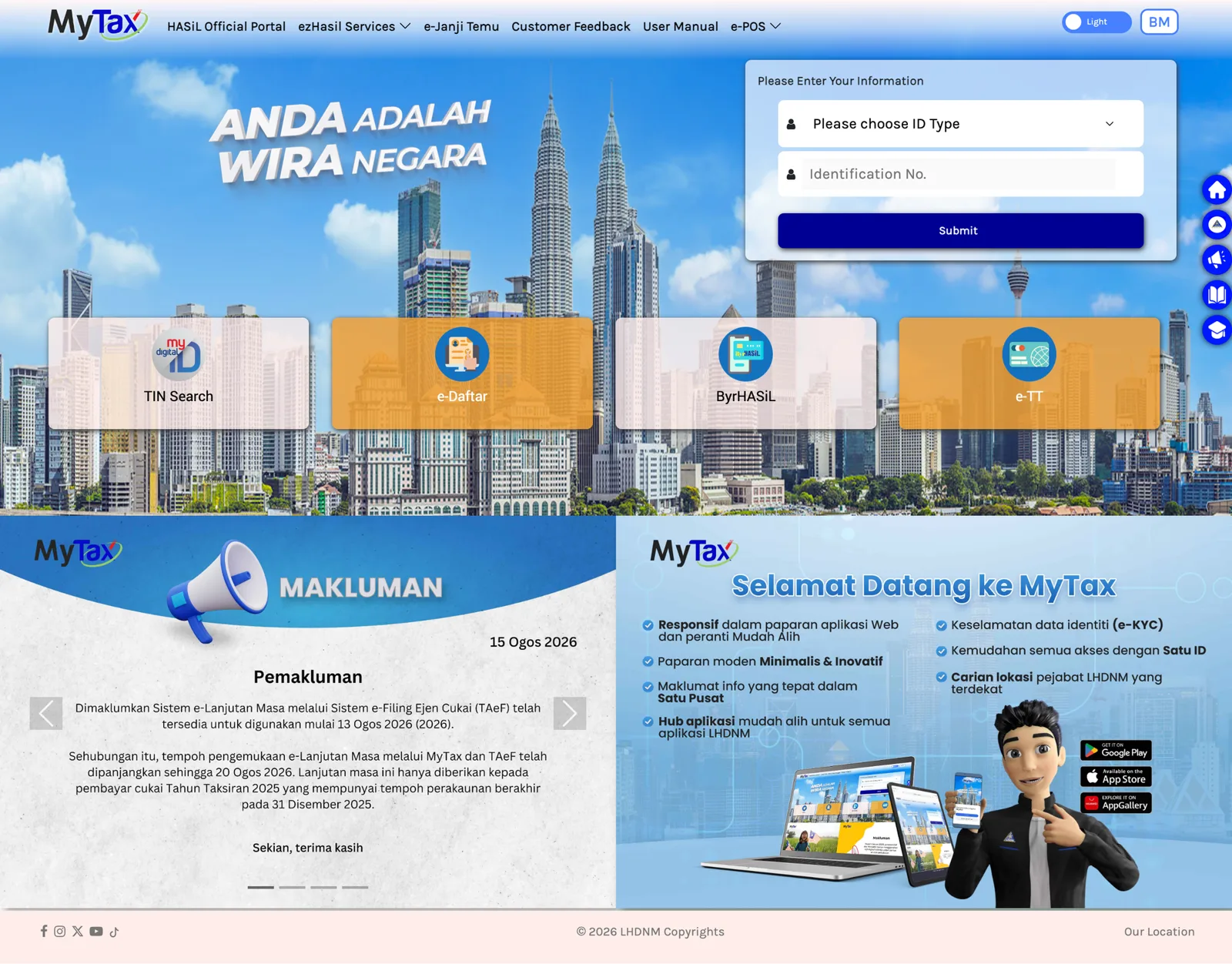
Go to mytax.hasil.gov.my and log in. This is the same MyTax account you use for income tax matters. From there, open the MyInvois portal.
Step 2: open your Taxpayer Profile
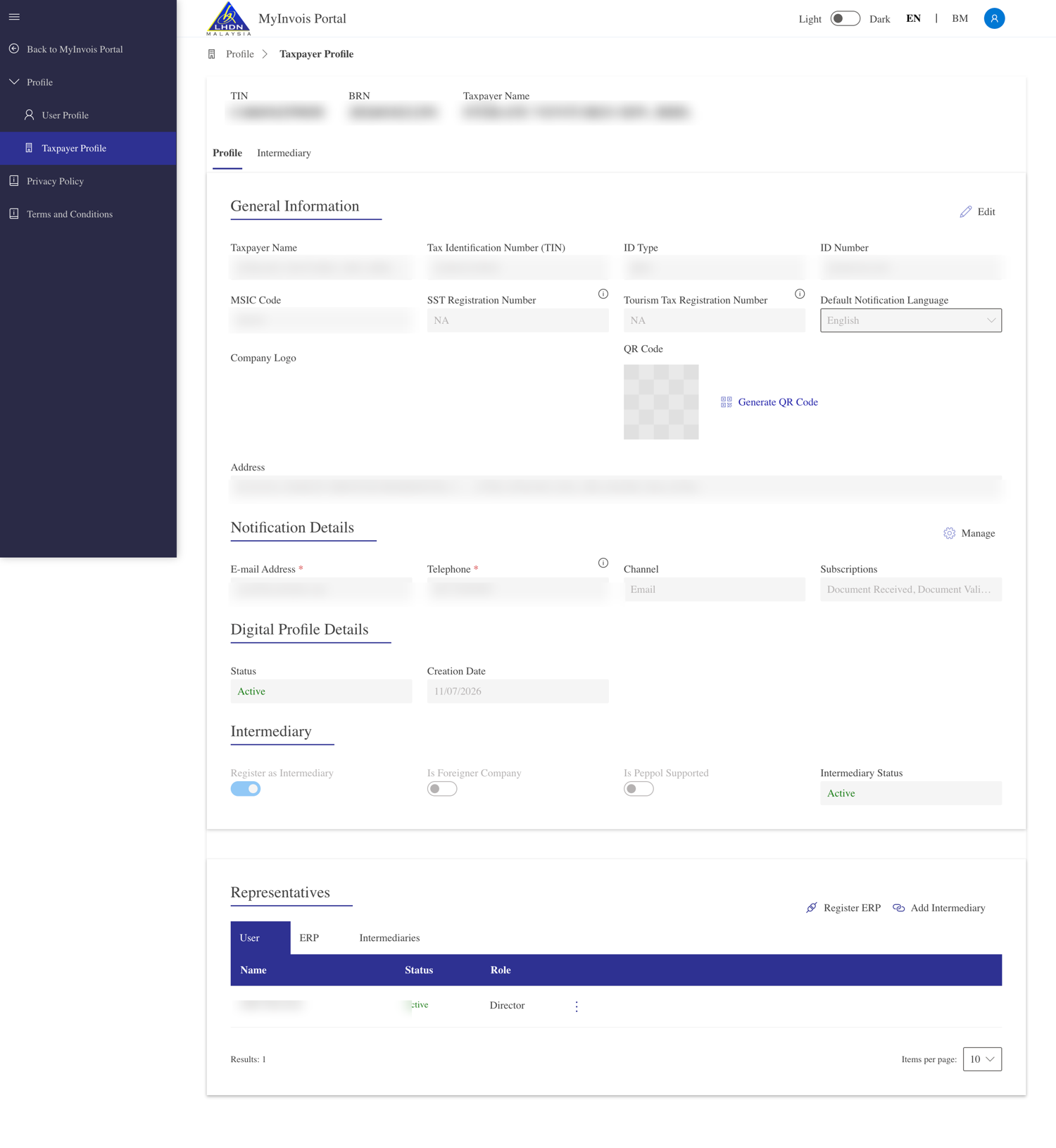
From the profile menu, choose View Taxpayer Profile, then open the Intermediary tab under Representatives.
Step 3: add the intermediary
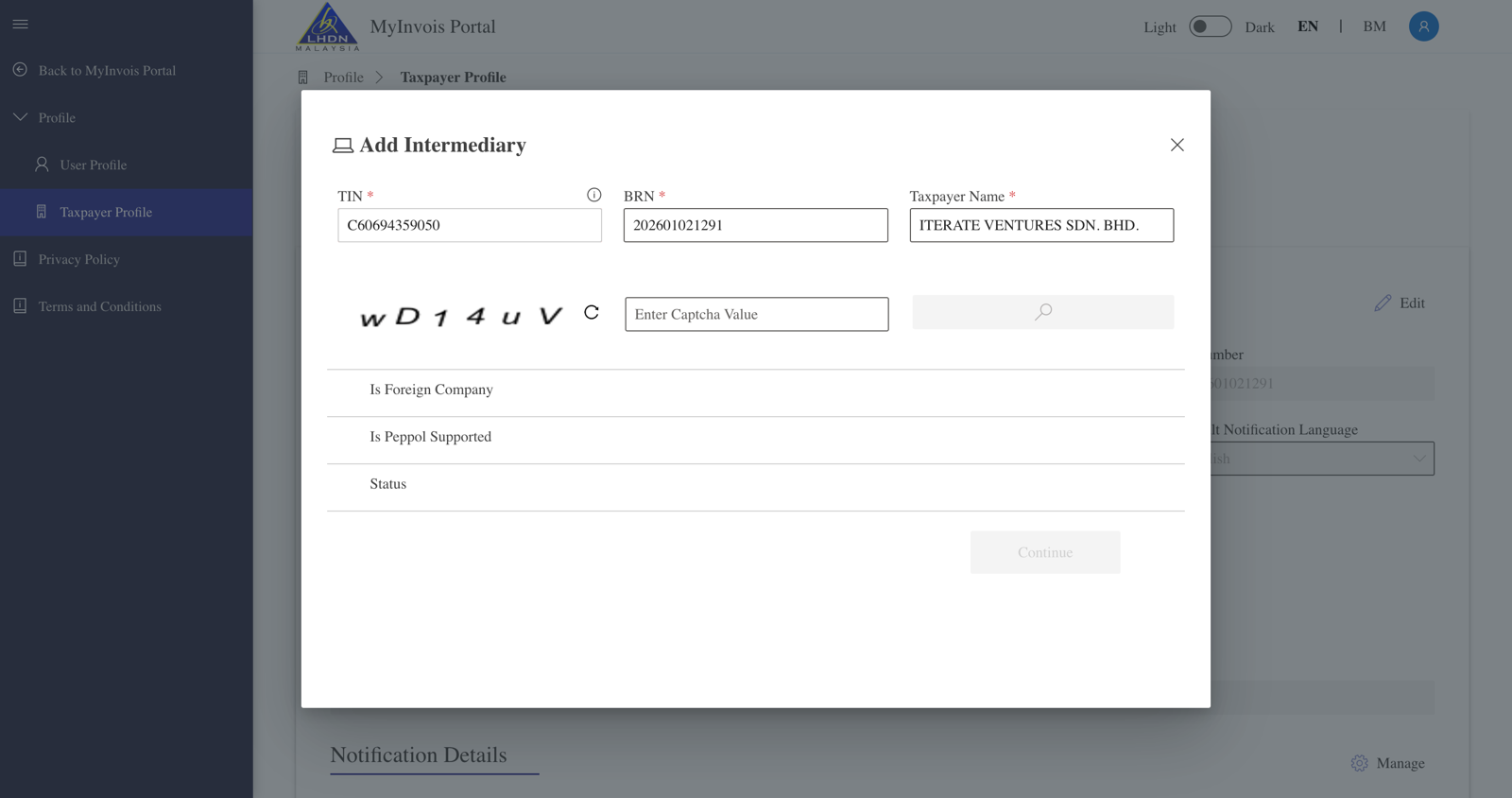
Click Add Intermediary and enter all three of Iterate Ventures Sdn. Bhd.'s details exactly as shown below. MyTax matches on the three together, and the search is case- and spacing-sensitive:
- TIN: C60694359050
- BRN: 202601021291
- Registered name: ITERATE VENTURES SDN. BHD.
Step 4: set the dates and turn on all five permissions
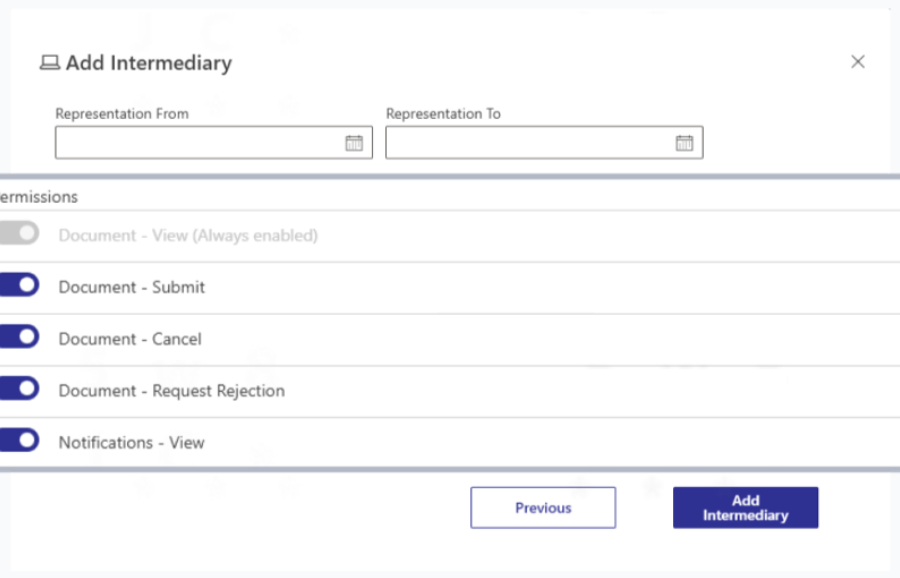
Set the representation dates, then turn on all five permissions. Lejar exercises only Document - Submit today; granting the full set now means you will not be walked back through MyTax when cancellation and rejection flows ship.
- Document - View
- Document - Submit
- Document - Cancel
- Document - Request Rejection
- Notifications - View
If the search returns "No Taxpayer Found"
Re-check the TIN and BRN for typos, and confirm the registered name matches exactly, spacing included. The portal matches all three fields together, so one wrong character is enough for an empty result.
Verify the appointment in Lejar
Back in Lejar, open Settings, then e-Invoice, and click Verify appointment. Lejar confirms directly with LHDN that the appointment is active, rather than taking an honor-system click, and managed e-invoicing is on from there. E-invoicing is free on every Lejar plan, including Free.
Frequently asked questions
Do I need my own digital certificate or ERP registration?
No. That is what the intermediary appointment replaces: Lejar submits to LHDN under its own registration on your behalf, and LHDN validates each document exactly as if you had submitted it yourself.
Is managed e-invoicing a paid add-on?
No. MyInvois e-invoicing is live and free on every Lejar plan, including Free.
What permissions does Lejar need?
All five in the Add Intermediary dialog: Document - View, Document - Submit, Document - Cancel, Document - Request Rejection, Notifications - View. Only Document - Submit is exercised today; granting the full set now avoids another MyTax visit when cancellation and rejection flows ship.
Can I remove the intermediary later?
Yes. The appointment stays under your control in the MyInvois portal: change the representation dates or remove it entirely at any time. Removing it stops Lejar from submitting for you.
The portal says No Taxpayer Found. What should I check?
Typos in the TIN or BRN, and the registered name not matching exactly, spacing included. Enter all three fields exactly as they appear in this guide.